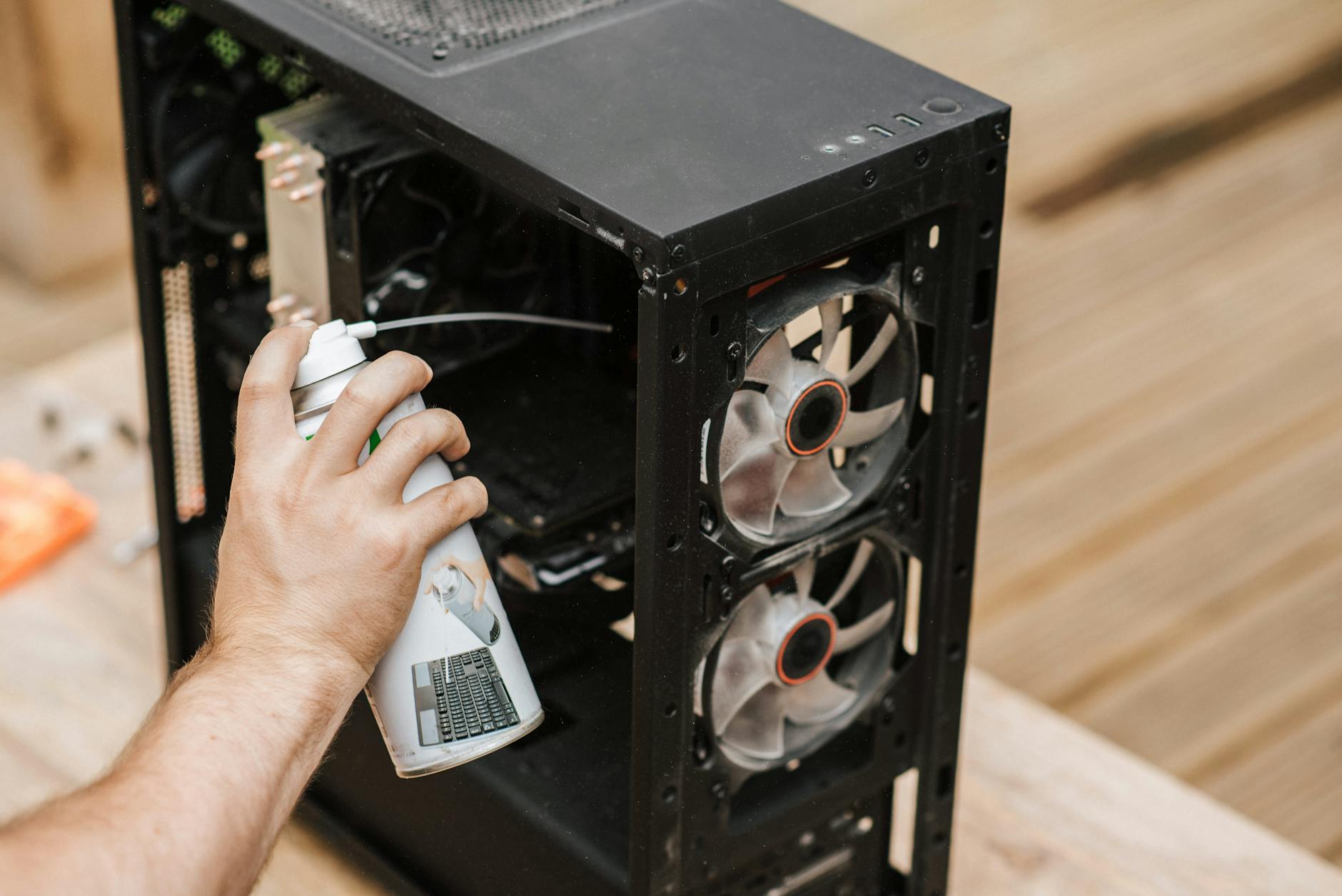
Cleaning your computer sounds like optional maintenance. It isn't. Dust, pet hair, and debris accumulate inside every desktop and laptop over time, clogging the fans and vents that keep the processor and graphics card from overheating. Left long enough, that heat causes real hardware damage: thermal throttling, sudden shutdowns, and in some cases permanent component failure. A can of compressed air and 20 minutes once or twice a year prevents most of it.
Why dust causes so much damage
Your computer's cooling system depends on airflow. The processor, graphics card, and power supply all generate heat, and fans push that heat out through vents. Dust acts as insulation. It coats the heatsink fins that dissipate heat from the CPU, blocks airflow across the graphics card, and clogs the fan blades themselves so they spin less efficiently. The hotter the internal temperature climbs, the more aggressively the system throttles performance to protect itself. That's the direct link between a dusty machine and a slow one.
Laptops are more vulnerable than desktops. The intake and exhaust vents are smaller, the fans run closer to the motherboard, and the entire thermal pathway is tighter. A laptop that runs hot on your desk is almost always partially blocked inside. If your machine's fans are audible and the case is warm to the touch under light workloads, dust is the first thing to check.
What you'll need before you start
For most home users, two items cover the job: a can of compressed air (sold at hardware and electronics stores) and a soft anti-static brush. For desktops, a Phillips-head screwdriver opens the side panel. Don't use a vacuum cleaner directly on the internals. Household vacuums generate static discharge that can destroy components. Compressed air is safer because it doesn't make contact.
If you're opening a laptop, check whether the bottom panel is user-removable. Many modern laptops, particularly MacBooks made after 2016, use pentalobe screws and require a specific driver. Some are sealed tightly enough that opening them voids any remaining warranty. When in doubt, have a technician do it rather than force a panel that isn't designed to flex.
How to clean a desktop PC
Shut the machine down and unplug it from the wall. Ground yourself by touching an unpainted metal surface before handling any internal components. Remove the side panel and use short bursts of compressed air to clear dust from the CPU heatsink, graphics card heatsink, case fans, and power supply vent. Hold each fan blade steady while blasting air through it so the blades don't spin freely under air pressure. Spinning a fan beyond its rated speed can damage the bearings. Keep the can upright to prevent liquid propellant from spraying onto the board.
Wipe the case interior with a dry microfibre cloth once the loose dust is out. Replace the panel, plug the machine back in, and check that all fans spin up on restart. The whole process takes around 15 to 20 minutes.
How to clean a laptop
For laptops you don't want to open, insert the compressed air straw into each vent opening and use short bursts. This pushes some dust out rather than deep in, which is better than nothing. You'll see dust exit from the opposite vent if the airpath is still clear. For a more thorough clean, remove the bottom panel if it's accessible, blow out the fan and heatsink directly, and clear the vent channel. A soft brush helps shift debris from the fan blades.
If you notice the laptop is still running hot after cleaning the accessible areas, the heatsink thermal paste may have dried out. Thermal paste sits between the CPU and the heatsink and transfers heat between them. It degrades over 3 to 5 years. Reapplying it requires removing the heatsink, wiping both surfaces clean with isopropyl alcohol, and applying a fresh pea-sized amount of paste before reassembly. This is worth doing on any laptop over 4 years old that runs hot.
Keeping the outside clean
The keyboard and screen collect oils, bacteria, and grime faster than the internals collect dust. For keyboards, tip the laptop gently and use compressed air between the keys. A soft, slightly damp microfibre cloth (water only, wrung out well) works for keycap surfaces. For screens, use a dry microfibre cloth or a screen-safe cleaning solution. Never spray liquid directly onto a display. Even a small amount that seeps behind the bezel can damage the panel backing.
Ports deserve attention too. USB-A and USB-C ports accumulate pocket lint and debris that makes cables seat poorly. A wooden toothpick or the compressed air straw clears most of it without risk of scratching the contacts.
How often should you clean?
Once a year is the baseline for most users in a standard home environment. If you have pets that shed, run the machine on carpet (which restricts the bottom vents), or live somewhere dusty, clean every 6 months. Desktop towers that sit on the floor collect dust faster than those on a desk. Elevating a tower on a small platform and using a dust filter over the front intake vent (most modern cases include one) cuts cleaning frequency substantially.
Persistent overheating after a thorough clean points to a hardware problem rather than a dust problem. Fan failure, a failed thermal sensor, or a failing hard drive can all cause unexpected heat. If your machine continues to shut down or throttle performance after cleaning, it's worth running a hardware diagnostic or having a technician check the internals. A computer that's overheating despite clean fans often has a mechanical fault that dust removal alone won't fix.
Similarly, if cleaning speeds your machine up only temporarily before it slows again, the cause is likely software rather than hardware. A consistently slow computer can point to startup programs, a fragmented or failing drive, or insufficient RAM for the workloads you're running. Physical cleaning is the right first step, but it doesn't solve every performance problem.
When to call a technician
Some jobs aren't safe to DIY. Reapplying thermal paste on a soldered chip, replacing a laptop fan with a proprietary connector, or cleaning inside a sealed MacBook Pro all carry a real risk of permanent damage if something goes wrong. A reputable repair technician charges around $80 to $150 for a full internal clean and thermal paste replacement on a laptop, which is well below the cost of a new machine and extends usable life by 2 to 3 years in most cases.
Dust is slow and invisible, which is why it rarely gets taken seriously until a machine fails. Catching it early is the cheapest repair there is.