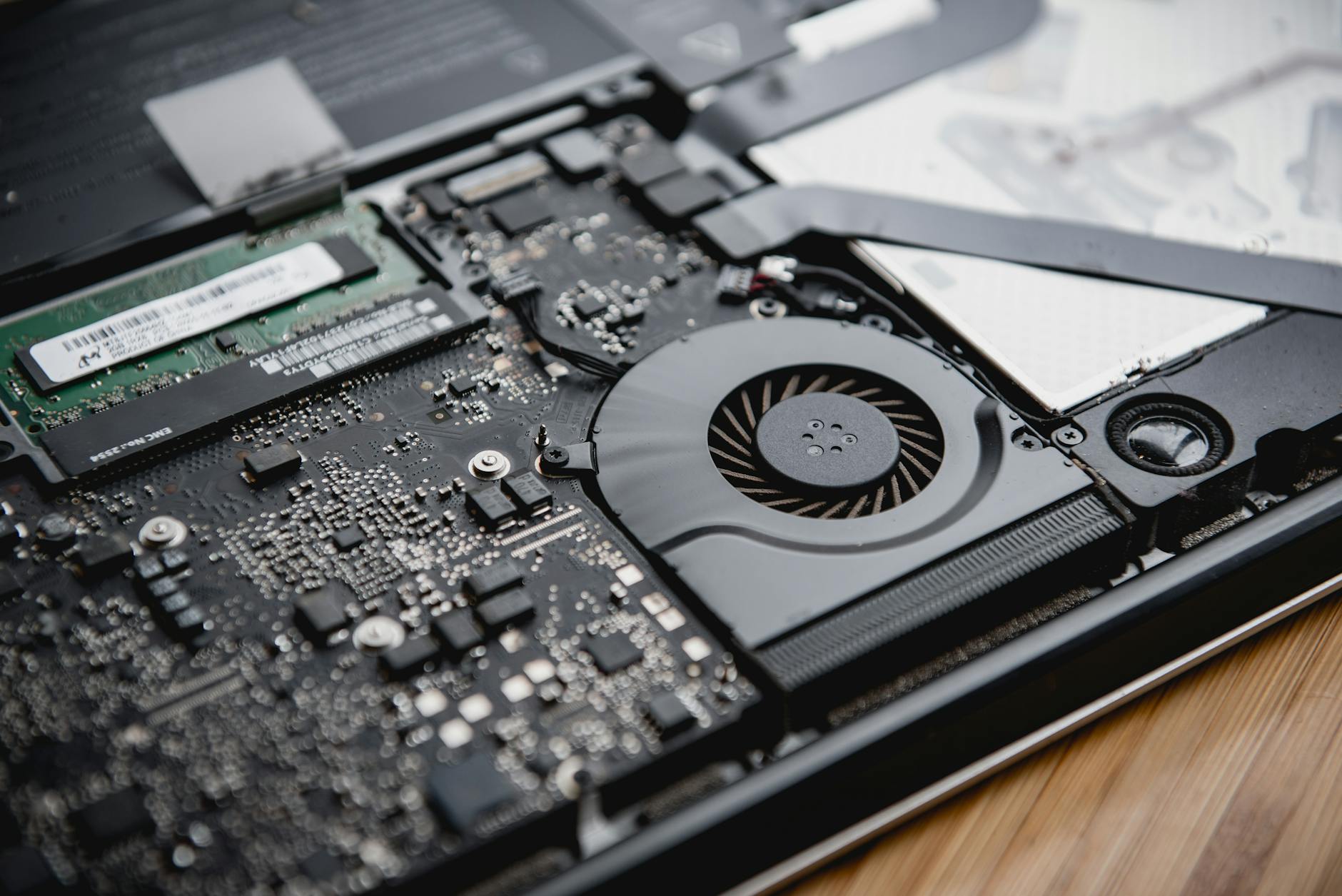
Laptop overheating is more than an inconvenience. Left unchecked, excess heat degrades internal components, shortens battery lifespan, and can cause permanent damage to the CPU, GPU, or motherboard. The good news: most cases have a clear cause and a straightforward fix. This article covers the main causes of laptop overheating, the warning signs to watch for, and the solutions that actually work.
Why laptops overheat: the main causes
Heat is a byproduct of every laptop's normal operation. The problem starts when heat builds up faster than the cooling system can remove it. That happens for a few distinct reasons.
Blocked vents and dust buildup. Laptop vents sit on the underside or sides of the chassis. Dust accumulates inside the heat sink and fan over time, restricting airflow. On a laptop that's 2 to 3 years old, a clogged cooling path is the most common cause of overheating. The fix requires opening the chassis or at least blowing compressed air through the vents.
Degraded thermal paste. The CPU and GPU connect to the heat sink via a thin layer of thermal paste, which transfers heat from the chip to the metal. That paste dries out over 3 to 5 years and becomes far less effective. When thermal paste fails, temperatures spike under load even if the fan is running at full speed.
Soft surfaces blocking intake vents. Using a laptop on a bed, couch, or lap can block the bottom vents entirely. The fan pulls in cool air from underneath. Block that path and temperatures climb within minutes, even on a clean machine.
Heavy workloads and background processes. Video editing, gaming, and running multiple virtual machines push the CPU and GPU to sustained high load. That's expected. What's not expected is a background process quietly doing the same thing. A rogue browser extension, a stuck update process, or an indexing task can pin one CPU core at 100% and generate significant heat with no visible cause.
A failing or slow fan. Laptop fans wear out. Bearings degrade, blades crack, and the fan controller can malfunction. A fan running at half speed during a demanding task won't shift enough heat. You might hear it struggling, or it might fail silently.
Warning signs your laptop is running too hot
Some signs are obvious. Others are easy to misread as software problems.
- The chassis is hot to the touch, especially around the keyboard or bottom panel near the vents.
- The fan runs constantly at high speed, even during light tasks like web browsing or document editing.
- Performance slows down under load. This is thermal throttling: the CPU deliberately reduces its clock speed to generate less heat when it reaches a critical temperature, typically around 95°C on most modern Intel and AMD chips.
- Unexpected shutdowns. When the CPU hits its thermal limit, the system shuts down without warning to prevent damage. If your laptop turns off mid-task with no error message, overheating is the first thing to check.
- Display artefacts or graphical glitches during gaming or video playback, which can point to a GPU running above safe operating temperature.
- Battery draining unusually fast, since a hot battery discharges more quickly and ages faster. If this is an ongoing issue, the battery draining fast guide covers the overlap between heat and battery health in more detail.
How to check your laptop's temperature
You don't need to guess. Free tools show CPU and GPU temperature in real time.
On Windows, HWiNFO is the most detailed option. It shows per-core temperatures, fan speeds, and power draw. For a quick check, Core Temp is simpler and shows the temperature of each CPU core in the taskbar. On macOS, iStatMenus shows CPU and GPU temperatures in the menu bar. Any CPU temperature above 90°C under sustained load is a red flag. Idle temperatures should sit between 35°C and 55°C for most laptops.
Solutions: how to fix a laptop that overheats
Work through these in order. The first few are free and take under five minutes.
1. Change where you use it. Place the laptop on a hard, flat surface. A wooden desk or a laptop stand works. Avoid beds and soft furnishings. This one change can drop temperatures by 10°C on a laptop with clean vents.
2. Clean the vents with compressed air. Point the can at the exhaust vent and blow short bursts. Do this outdoors or the dust will just redistribute inside the room. Many laptops have a service panel on the bottom that gives easier access to the fan. If your model allows it, removing the panel and blowing directly at the fan is more effective than working through the external grille.
3. Close unnecessary background processes. On Windows, open Task Manager (Ctrl + Shift + Esc) and sort by CPU usage. On macOS, use Activity Monitor. Any process consuming more than 20% CPU when you're not actively using it deserves investigation. Browser tabs running JavaScript, antivirus scans, and Windows Update downloads are the usual culprits.
4. Update drivers, especially GPU drivers. Outdated GPU drivers occasionally cause the graphics chip to run at higher power states than necessary. On Windows, check Device Manager or use the GPU manufacturer's own software. On Mac, macOS handles driver updates through system software updates.
5. Repaste the CPU and GPU. This is the most effective fix for a laptop that's 3 or more years old and running hot despite clean vents. It requires disassembling the laptop, cleaning off the old paste with isopropyl alcohol, and applying fresh thermal paste. If you're not comfortable doing this yourself, a repair technician can do it in under an hour. The difference can be 15°C to 25°C lower peak temperatures on an older machine.
6. Replace the fan. If the fan is audibly struggling or running slowly under load, the fan itself may be failing. Replacement fans for most common laptop models cost between $20 and $60 and are a straightforward repair for a technician.
7. Use a cooling pad. An external laptop cooling pad with active fans lifts the laptop off the desk and blows additional air across the bottom. It won't fix a dust-clogged machine, but it helps with thermals during extended gaming or video editing sessions. It's a supplement, not a substitute for proper maintenance.
When the hardware itself is the problem
Some laptops are designed with inadequate cooling for their components. Thin-and-light models that pack a high-wattage processor into a chassis with minimal airspace sometimes run hot by design. In those cases, limiting the CPU's maximum power state through Windows power settings or undervolting the processor (using tools like Intel Extreme Tuning Utility or AMD Ryzen Master) can reduce heat without a meaningful loss in day-to-day performance.
If your laptop is showing other fault signs alongside overheating, it's worth checking for broader hardware issues. The guide to common MacBook problems and how to troubleshoot them covers several heat-related symptoms specific to Apple hardware, including fan control and SMC resets.
When to get professional help
Compressed air and surface changes solve a large share of overheating cases. But if temperatures stay above 90°C at idle after cleaning, or if the laptop shuts down during light tasks, the problem is deeper. Degraded thermal paste, a failing fan, or a damaged heat sink all need hands-on diagnosis. Continuing to run a laptop that shuts down from heat risks corrupting data on the drive and shortening the lifespan of every component inside.
If you're trying to work out what a repair might cost before committing, the breakdown of computer repair costs in Australia gives realistic figures for fan replacements and thermal repasting jobs.