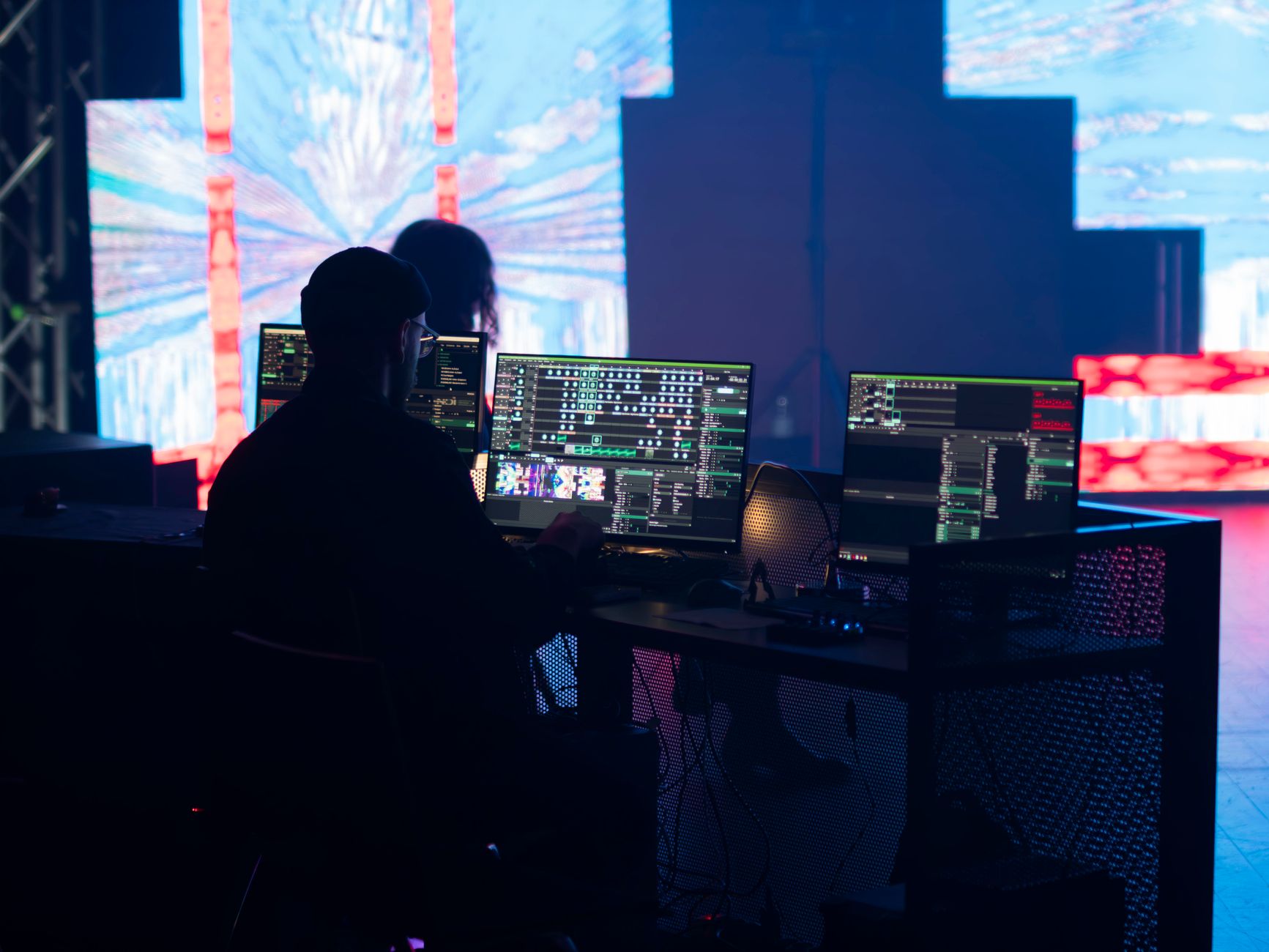
Remote IT support is a service that lets a technician connect to your computer over the internet and fix problems as if they were sitting right next to you. No truck rolls. No booking a repair shop drop-off. The technician sees your screen, controls your mouse (with your permission), and resolves the issue while you watch. It's how the majority of software problems, performance issues, and configuration headaches get solved today.
How the connection actually works
The process starts with remote access software. The technician sends you a link or a small program to download. You run it, it generates a session code, and you share that code with the technician. Once you confirm the connection, the technician gains access to your desktop. Popular tools used by professionals include TeamViewer and AnyDesk, though many IT providers use their own branded platforms built on the same technology.
You stay in control the whole time. You can see every action the technician takes on screen, and you can end the session instantly by closing the application or pressing a disconnect button. The connection drops the moment the session ends. Nothing persistent is left running on your machine unless you've specifically agreed to install ongoing monitoring software.
Most sessions run over a standard broadband connection. Even NBN 25 speeds are enough for a smooth remote session, since the technician isn't transferring large files. They're sending compressed screen data and mouse instructions, which uses very little bandwidth.
What kinds of problems can be fixed remotely
Most software-based problems are fair game. A good technician can remove malware, reconfigure a slow startup sequence, reinstall corrupted drivers, fix email client settings, resolve Windows Update failures, or troubleshoot a printer that's stopped talking to your network. If common computer problems that can be fixed remotely is a question you're asking, the short answer is: more than you'd expect.
Hardware faults are the main exception. A technician can't replace a failing hard drive or a cracked screen over the internet. But they can often diagnose a hardware issue remotely using built-in tools like Windows Disk Management or macOS System Information, so you know exactly what the problem is before spending money on an in-person visit.
Performance problems are one of the most common reasons people call for remote help. A slow machine is almost always a software issue: too many startup programs, a fragmented disk, a misbehaving browser extension, or a background process eating CPU. These are all fixable in a single remote session.
What happens during a remote IT support session
A typical session runs in four stages.
- Intake: The technician asks you to describe the problem. Good technicians ask specific questions, not vague ones.
- Connection: You download the session tool, share the code, and approve the connection request.
- Diagnosis and repair: The technician works through the problem while explaining what they're doing. This is usually 10 to 40 minutes depending on complexity.
- Sign-off: The technician walks you through what was fixed, confirms the issue is resolved, and ends the session.
You should never feel pressured to leave the room during a session. A legitimate technician won't mind you watching. If one asks you to look away or step out, that's a warning sign worth taking seriously.
Remote support vs on-site support: when each makes sense
Remote support is faster and cheaper for most problems. There's no travel time, no waiting for an appointment slot, and many providers offer same-day sessions. For a detailed comparison, the remote vs on-site computer support guide covers the tradeoffs in full.
On-site support makes sense when the fault is physical: a broken port, a dead power supply, a screen that won't turn on. It's also the right call when the computer itself can't connect to the internet, which makes remote access impossible by definition.
For small businesses, remote support often removes the need for a dedicated IT person on the payroll. A technician on retainer can respond to problems in minutes rather than hours, which keeps downtime low without the cost of full-time staff.
Is it safe to let someone access your computer remotely?
Yes, with legitimate providers. The key word is legitimate. Remote access tools are safe by design: the connection requires you to actively approve it, the session is temporary, and reputable providers don't store your credentials or leave persistent backdoors.
The risk comes from scammers who use the same tools to impersonate tech support. They cold-call victims, claim there's a virus on the machine, and ask for access. A real IT provider never contacts you out of the blue to report a problem they somehow already know about. If you booked the session and you know who you're talking to, the risk is low. If someone called you first, hang up.
For more detail on how to tell the difference, the article on whether remote computer support is safe covers the specific checks worth doing before any session.
Who remote IT support is best suited for
Remote support works well for home users who don't want to unplug their computer and carry it somewhere. It works equally well for small business owners who can't afford downtime and don't want to wait two days for a technician to arrive. It suits anyone who works from home and relies on their machine for income.
It's less suited to people with no internet connection, machines that won't boot at all, or problems that are definitively hardware. For those cases, an on-site technician or a repair shop is the right answer.
The model has expanded significantly over the past few years. Providers now offer subscription plans, pay-per-session options, and business retainers. Pricing varies, but remote support consistently costs less than an equivalent in-person visit because the technician isn't billing travel time.