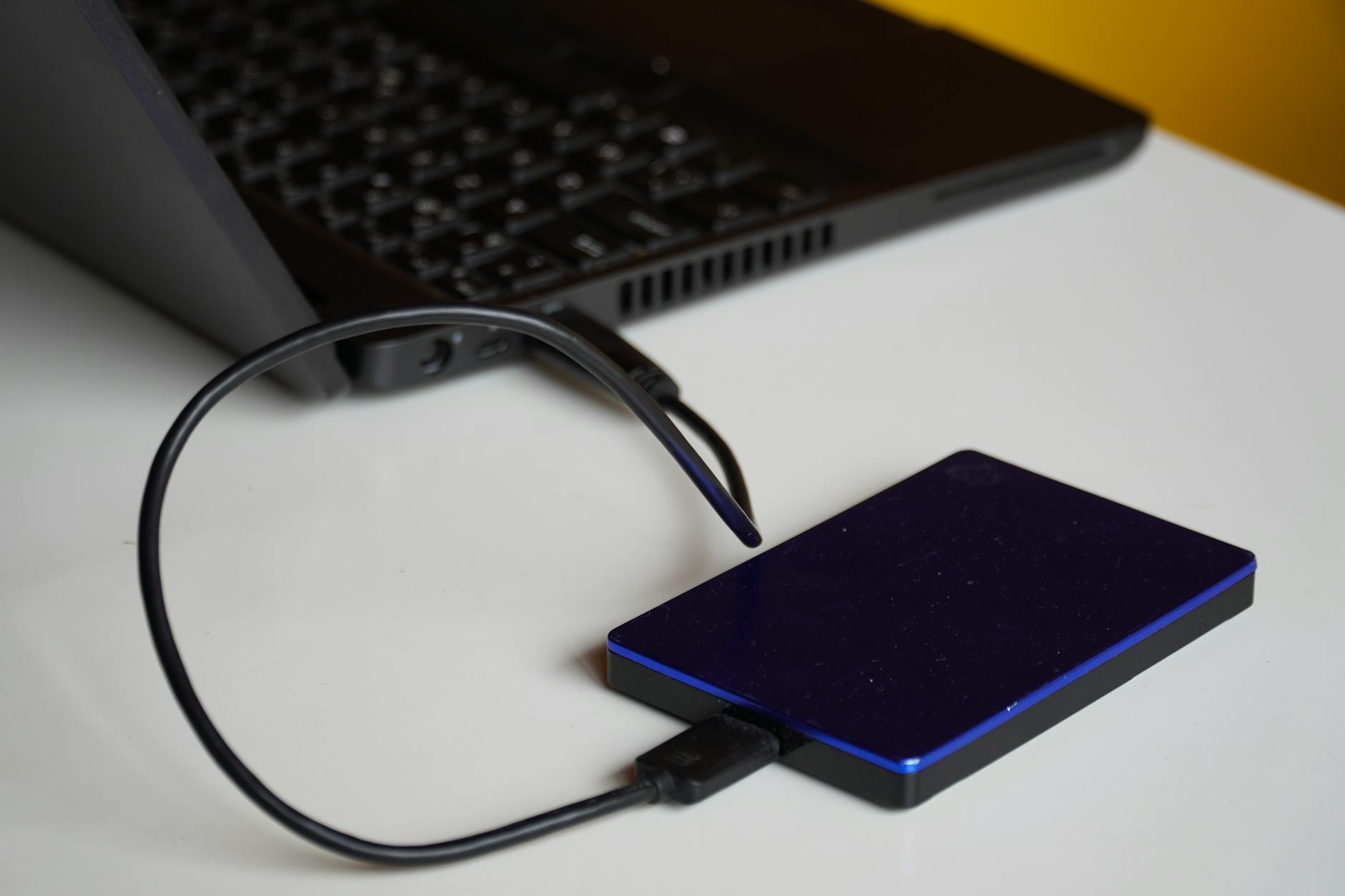
A hard drive not showing up is one of the more alarming things a computer can do. One moment the drive is there; the next, it's gone from File Explorer or Finder with no explanation. The good news is that disappearing drives are usually a software or configuration problem, not a physical failure. This guide walks through the most likely causes and the fixes that actually work, in order of complexity.
Why a hard drive stops showing up
The drive itself is often fine. What fails is the connection between the drive and the operating system: a missing drive letter, an uninitialized partition, an outdated driver, or a loose cable. Physical failure does happen, but it accounts for a smaller share of "invisible drive" cases than most people assume. Start with the simple explanations before assuming the worst.
The cause also depends on the type of drive. An external hard drive that suddenly vanishes is almost always a USB or power issue. An internal drive that stops appearing after a Windows update is more likely a driver or partition problem. Keep that distinction in mind as you work through the steps below.
Step 1: check the physical connection
This sounds obvious. It fixes the problem more often than it should. For external drives, unplug the USB cable from both ends and plug it back in firmly. Try a different USB port, ideally one directly on the machine rather than a hub. Some external drives need more power than a USB hub delivers. If the drive has its own power adapter, confirm it's seated and the adapter is live.
For internal drives, the fix is more involved. Shut the machine down, open the case, and reseat the SATA cable at both the drive and the motherboard. SATA connectors don't lock and they work loose over time, especially in a machine that gets moved around. While you're in there, check that the power connector from the PSU is fully inserted.
Step 2: check Disk Management (Windows) or Disk Utility (Mac)
File Explorer only shows drives with an assigned drive letter and a readable file system. Disk Management shows everything the system can detect, including drives that haven't been set up yet.
Open Disk Management by right-clicking the Start button and selecting it from the menu. If the drive appears here but has no drive letter, right-click the partition and choose "Change Drive Letter and Paths", then assign one. If it shows as "Unallocated", the partition table is missing or corrupt. Do not format it yet. Formatting will erase the data. Jump to Step 5 first.
On a Mac, open Disk Utility from Applications > Utilities. If the drive appears in the sidebar but won't mount, select it and click Mount. If it's greyed out or showing a warning, run First Aid on it. Disk Utility's First Aid repairs common directory errors without touching your files.
Step 3: update or reinstall the driver (Windows)
Windows occasionally loses track of a drive after an OS update because the driver gets replaced with an incompatible version. Open Device Manager, expand "Disk drives", and look for any entry with a yellow warning triangle. Right-click the flagged device and choose "Update driver". If that doesn't clear it, choose "Uninstall device" instead, then restart the machine. Windows will reinstall the driver on boot.
USB controllers can cause the same problem. Under "Universal Serial Bus controllers" in Device Manager, uninstall the USB root hubs, then restart. It takes about 60 seconds and fixes a surprising number of external drive disappearances.
Step 4: try a different computer or OS
Plug the drive into a second machine. If it shows up immediately, the problem is with your original computer's configuration, not the drive itself. That narrows the fix considerably. If the drive doesn't show up on a second machine either, the drive or its enclosure is the likely culprit.
For external drives, try removing the drive from its USB enclosure and connecting it directly via SATA if you have a spare port or a USB-to-SATA adapter. Enclosure controllers fail more often than the drives inside them. A drive that works fine bare but fails in its enclosure just needs a new housing, which costs very little.
Step 5: recover data before attempting repairs
If Disk Management shows the partition as unallocated, or if the drive makes clicking or grinding sounds, stop here. Clicking sounds specifically indicate a mechanical problem: the read/write head is struggling. Running the drive further can cause permanent data loss.
Before trying any repair tool, consider whether the data on the drive matters. If it does, the safest path is to image the drive first using a tool like Clonezilla, which creates a sector-by-sector copy you can then work on without touching the original. Run recovery tools against the image, not the failing drive itself.
For drives with no physical symptoms but an unreadable partition, tools like TestDisk can often reconstruct the partition table and get the drive visible again without formatting. TestDisk is free and works on both Windows and macOS. It's not a beginner tool, but it's well-documented and handles the most common partition recovery scenarios.
If the data is critical and the drive is making noise, professional recovery is worth the cost. Home repair attempts on a physically failing drive rarely end well, and they can close off options that a lab could otherwise use. It's also worth reviewing how you're storing copies of important files. As covered in our guide on cloud backup vs external hard drives, relying on a single drive for irreplaceable data is the real risk factor here.
Step 6: check for malware
It's less common, but malware can hide or disable drives as part of a broader attack. If the drive disappeared around the same time the machine started behaving oddly, run a full scan before doing anything else. Our article on how to tell if your computer has a virus or malware covers the warning signs worth checking first.
When to accept the drive is dead
Some drives don't come back. If the drive doesn't appear in Disk Management, doesn't appear on a second machine, makes abnormal sounds, and shows no sign of life after a fresh power and cable test, it's likely failed. The BIOS or UEFI screen is a useful final test: if the drive doesn't appear there either, the hardware itself isn't responding at all.
At that point, the question shifts from "how do I fix this drive?" to "how do I get my data back?" A professional data recovery service can often retrieve files from drives that software tools can't touch, though the cost reflects the work involved. For drives without critical data, the drive itself goes in the bin.
The practical takeaway: most hard drives that stop showing up are recoverable with the steps above. Physical failure is real, but it's the last explanation to reach for, not the first.